Applying Patches to Oracle WebLogic Application Server
WebLogic Server, like any program, has bugs. To fix some of these bugs, Oracle releases special patches that can be installed on the current server version without waiting for the next release.
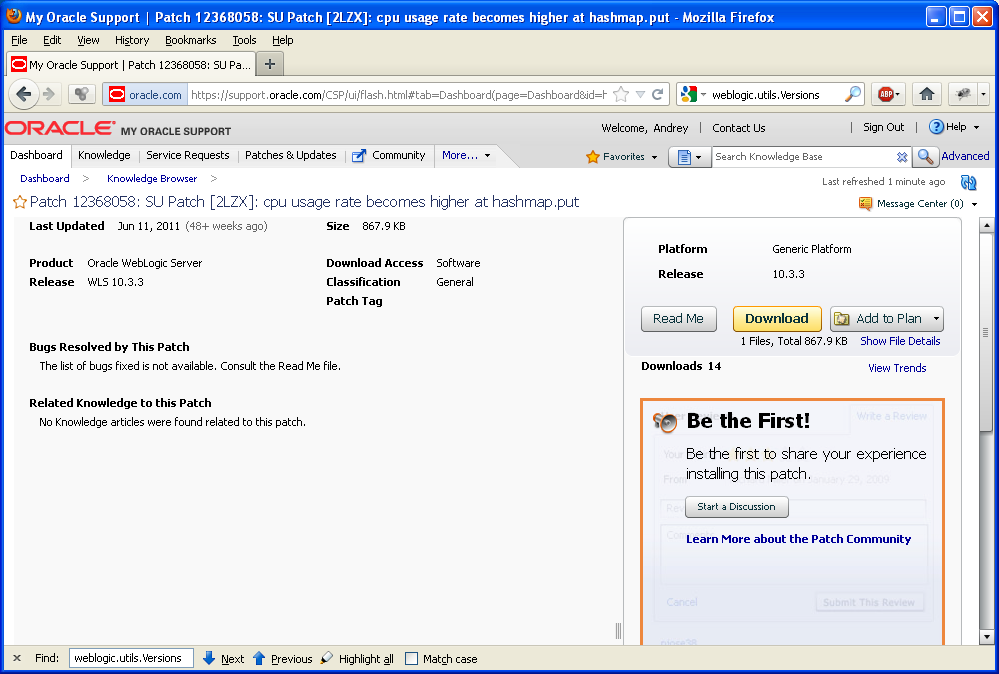
Such patches are distributed through Oracle Support - some patches are available for download to all subscribers of this service, while others are made specifically for individual clients.
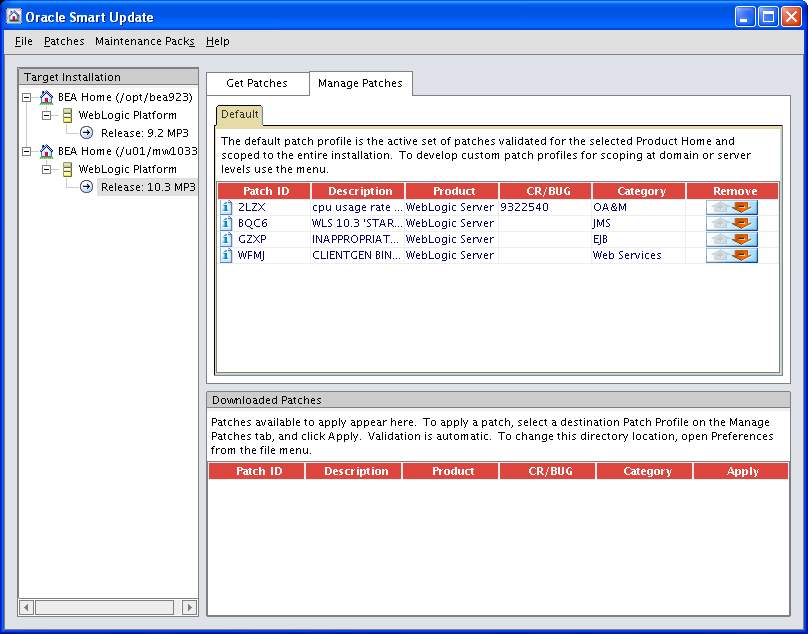
To work with such patches, the WebLogic distribution includes a special utility - Oracle Smart Update.
Patches are identified by the bug number they fix, as well as by the server version for which they are intended.
A patch variant for a specific bug number and version is designated by a four-character alphanumeric code.
For example, a patch with code ‘HCE9’ is intended to fix bug #8178661 for WebLogic Server 9.2MP3 (9.2.3). It is important to note that a patch is always tied to a specific version (down to the service pack) and cannot be officially installed on another version - i.e., a patch made for version 10.3 (i.e., actually 10.3.0) cannot be installed on version 10.3.3. For individual bugs, there are also articles in Oracle Support that describe the given bug.
Determine which patches are installed on the WebLogic server
You need to find the version string in the server log (normal or console) - it is located at the beginning of the file. For example, if there are no additional patches on the server, this line may look like:
<BEA-000000> <WebLogic Server "Server1" version:
WebLogic Server 10.3.3.0  Fri Apr 9 00:05:28 PDT 2010 1321401  Copyright (c) 1995, 2009, Oracle and/or its affiliates. All rights reserved.>
or like this:
<BEA-141107> <Version: WebLogic Server 9.2 MP2 Mon Jun 25 01:32:01 EDT 2007 952826 >
or like this:
<BEA-000214> <WebLogic Server "SampleSrv" version:
WebLogic Server 9.2 MP3  Mon Mar 10 08:28:41 EDT 2008 1096261  (c) 1995, 1996, 1997, 1998 WebLogic, Inc.
 (c) 1999, 2000, 2001 BEA Systems, Inc.>
If additional patches are installed on the server, the version may look like this:
<BEA-000000> <WebLogic Server "AdminServer" version:
WebLogic Server Temporary Patch for 9404326 Tue Aug 31 13:58:25 PDT 2010
WebLogic Server Temporary Patch for 12565781 Tue Aug 02 16:52:00 IST 2011
WebLogic Server Temporary Patch for BUG8732539 Fri Mar 25 12:30:05 IST 2011
WebLogic Server 10.3.3.0  Fri Apr 9 00:05:28 PDT 2010 1321401  Copyright (c) 1995, 2009, Oracle and/or its affiliates. All rights reserved.>
or like this:
<BEA-141107> <Version: WebLogic Server Temporary Patch for 12565781 Fri Jul 01 12:38:24 IST 2011
WebLogic Server Temporary Patch for CR385272 Wed Jan 21 17:14:42 GMT+05:30 2009
WebLogic Server 9.2 MP3  Mon Mar 10 08:28:41 EDT 2008 1096261 >
Version information in this format is also available through the Web console - to do this, go to the page of a specific server, then select the Monitoring tab, General sub-tab.
How to install patches using Oracle Smart Update?
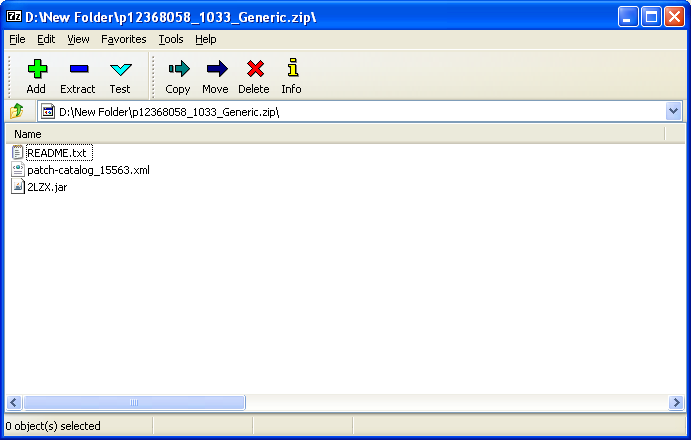
A patch for WebLogic Server is usually a zip archive containing a readme file, an archive with the fix itself (like XXXX.jar, for example HCE9.jar) and an xml file containing a catalog of all patches and information about their compatibility (the information in the catalog is current as of the release of this patch). The main algorithm for applying such a patch is as follows - you need to place the above archive contents into the Oracle Smart Update cache directory, then run the utility itself and apply the necessary patches interactively. We will not discuss this installation option in detail - it can be found in the corresponding documentation: Oracle Smart Update - Applying Patches to Oracle WebLogic Server. Instead, we will consider the option of installing a patch via the command line:
Identify the directories, their names will be used in the following steps:
- MW_HOME – the directory where WebLogic products are installed (e.g., '/opt/mw103'). We will denote it as $MW_HOME.
- WL_HOME – the directory where a specific version of WebLogic Server is installed (e.g., '/opt/mw103/wlserver103'). We will denote it as $WL_HOME.
Unpack all necessary patches into the $MW_HOME/utils/bsu/cache_dir directory. If using the combined archives provided below, they need to be unpacked into the $MW_HOME/utils/bsu directory. If individual patches were unpacked into the directory instead of the builds provided below, you need to set up the correct patch directory. To do this, among all files like ‘patch-catalog_XXXXX.xml’ and ‘patch-catalog.xml’ in the $MW_HOME/utils/bsu/cache_dir directory, select the one with the maximum size and rename it to patch-catalog.xml. Go to the $MW_HOME/utils/bsu directory - commands from the following steps will be executed from there.
To view the current list of installed patches, you can run the following command:
./bsu.sh -view -prod_dir=$WL_HOME -status=applied
The result may be as follows:
ProductName:       WebLogic Server
ProductVersion:    10.3 MP3
Components:        WebLogic Server/Core Application Server,WebLogic Server/Admi
                   nistration Console,WebLogic Server/Configuration Wizard and
                   Upgrade Framework,WebLogic Server/Web 2.0 HTTP Pub-Sub Serve
                   r,WebLogic Server/WebLogic SCA,WebLogic Server/WebLogic JDBC
                    Drivers,WebLogic Server/Third Party JDBC Drivers,WebLogic S
                   erver/WebLogic Server Clients,WebLogic Server/WebLogic Web S
                   erver Plugins,WebLogic Server/UDDI and Xquery Support,WebLog
                   ic Server/Workshop Code Completion Support
BEAHome:           C:\bea1033
ProductHome:       C:\bea1033\wlserver_10.3
PatchSystemDir:    C:\bea1033\utils\bsu
PatchDir:          C:\bea1033\patch_wls1033
Profile:           Default
DownloadDir:       C:\bea1033\utils\bsu\cache_dir
JavaVersion:       1.6.0_18
JavaVendor:        Sun


Patch ID:          WFMJ
Patch ID:          2LZX (9322540)
In this case, two additional patches are installed on the server - WFMJ and 2LZX.
To view the current list of patches available for installation, you can run the following command:
./bsu.sh -view -prod_dir=$WL_HOME -status=downloaded
The result may be as follows:
ProductName:       WebLogic Server
ProductVersion:    10.3 MP3
Components:        WebLogic Server/Core Application Server,WebLogic Server/Admi
                   nistration Console,WebLogic Server/Configuration Wizard and
                   Upgrade Framework,WebLogic Server/Web 2.0 HTTP Pub-Sub Serve
                   r,WebLogic Server/WebLogic SCA,WebLogic Server/WebLogic JDBC
                    Drivers,WebLogic Server/Third Party JDBC Drivers,WebLogic S
                   erver/WebLogic Server Clients,WebLogic Server/WebLogic Web S
                   erver Plugins,WebLogic Server/UDDI and Xquery Support,WebLog
                   ic Server/Workshop Code Completion Support
BEAHome:           C:\bea1033
ProductHome:       C:\bea1033\wlserver_10.3
PatchSystemDir:    C:\bea1033\utils\bsu
PatchDir:          C:\bea1033\patch_wls1033
Profile:           Default
DownloadDir:       C:\bea1033\utils\bsu\cache_dir
JavaVersion:       1.6.0_18
JavaVendor:        Sun


Patch ID:          BQC6
Patch ID:          GZXP
In this case, two more patches can be additionally installed on the server - BQC6 and GZXP.
To install a specific patch, you can run the following command (replace XXXX with the identifier of the specific patch): ./bsu.sh -install -prod_dir=$WL_HOME -patchlist=XXXX For example, when installing a patch with identifier ‘2LZX’, run the following command:
./bsu.sh -install -prod_dir=$WL_HOME -patchlist=2LZX
Upon successful completion of the update, the following information will be displayed:
Checking for conflicts..
No conflict(s) detected

Installing Patch ID: 2LZX..
Result: Success
It may also happen that this patch has already been applied - then the message will be as follows:
Patch already installed: 2LZX in profile: Default
Please note that after performing these actions, the modified jar files will be used by ALL server instances that use this WL_HOME. If cluster nodes are located on different machines, then to install the patch, the described actions need to be performed on each machine.
How to activate patches for a specific server?
When Oracle Smart Update installs a patch, it creates a special jar file that references all necessary jar files through its manifest. To activate most patches, it is enough that this jar file appears in the classpath before the regular weblogic.jar. This condition is automatically met for all non-clustered NC configurations (the $WL_HOME/common/bin/commEnv.sh script is responsible for generating the correct Classpath), as well as for our administrative servers in the cluster. For cluster nodes, you need to add a reference to the following archive at the beginning of the Classpath:
For 9.2.3: $MW_HOME/patch_weblogic923/profiles/default/sys_manifest_classpath/weblogic_patch.jar
For 10.3.3: $MW_HOME/patch_wls1033/profiles/default/sys_manifest_classpath/weblogic_patch.jar
In addition, activating certain patches may require adding additional parameters to the server startup arguments - this information is provided in the description of the corresponding patch.
It is important to note that the step of including the above references in the Classpath is mandatory for activating a patch on cluster servers - if you forget to do this, the patch will not be applied.
Find out which version of Weblogic is installed
$ cd /opt/mw1033/wlserver103/server/bin
$ . ./setWLSEnv.sh
$ java weblogic.version
WebLogic Server 10.3.3.0 Fri Apr 9 00:05:28 PDT 2010 1321401
Practical example of applying patches to a weblogic server
$ mv p12368058_1033_Generic.zip /u01/mw1033/utils/bsu/cache_dir/
$ cd /u01/mw1033/utils/bsu/cache_dir/
$ unzip p12368058_1033_Generic.zip
$ rm p12368058_1033_Generic.zip
$ mv patch-catalog_15563.xml patch-catalog.xml

cd /opt/mw1033/utils/bsu
export DISPLAY=ip:0.0
./bsu.sh