[Oracle DataBase Server 12.1 Installation on Oracle Linux 6.7]: Configuring Display Manager
Preparation and verification
192.168.1.5 - ip address of the computer from which the installation process is managed.
192.168.1.11 - ip address of the server
If installing from a Windows machine
Install XMing and additional fonts. :
http://sourceforge.net/projects/xming/
http://sourceforge.net/projects/xming/files/Xming-fonts/
Reboot. If you don’t reboot, during installation of version 10 RAC, problems occurred (buttons were not displayed on the last installation step).
Next, configure access rules.
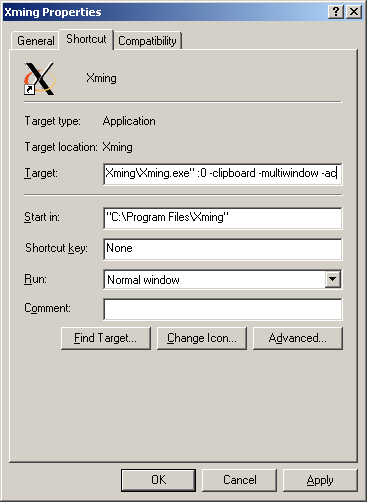
In the simplest case, right-click on the xming shortcut. Go to properties and add -ac to the target (i.e., no access control)
If installing from a Linux machine
On the client:
$ sudo apt-get install -y gdm
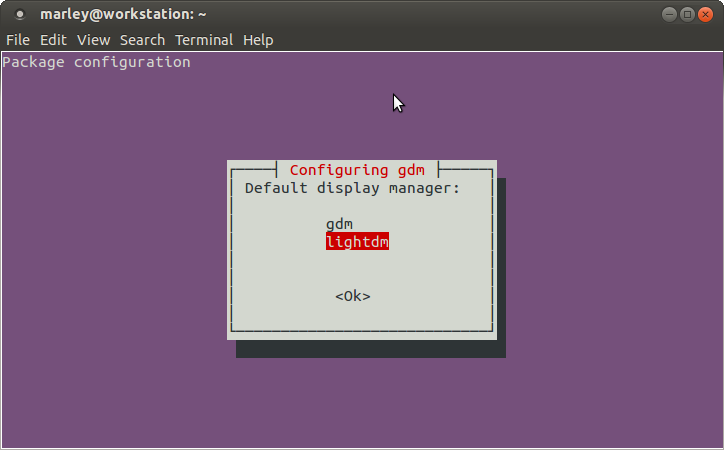
I think it’s better to choose lightdm (gdm last time didn’t want to work for me). More precisely, I configured gdm as described here, then spent god knows how much time troubleshooting and then decided to try lightdm. After reboot, the service started listening on port 6000).
If needed, you can switch later with commands:
# dpkg-reconfigure gdm
# dpkg-reconfigure lightdm
If lightdm is chosen
# vi /etc/lightdm/lightdm.conf
###########################

[SeatDefaults]
user-session=ubuntu
greeter-session=unity-greeter
xserver-allow-tcp=true

###########################
If gdm is chosen
# vi /etc/gdm/custom.conf
Add to the blocks:
[security]
DisallowTCP=false

[xdmcp]
Enable=true
# sudo restart lightdm
or
# service gdm restart
Verification commands
$ ps ax | grep dm
$ ps lf -C Xorg
There should be a line “listen tcp”
$ sudo apt-get install -y nmap nc
$ netstat -an | grep -F 6000
tcp        0      0 0.0.0.0:6000            0.0.0.0:*               LISTEN
tcp6       0      0 :::6000                 :::*                    LISTEN
# nmap -p 6000 192.168.1.5
Starting Nmap 5.21 ( http://nmap.org ) at 2013-08-18 04:13 MSK
Nmap scan report for 192.168.1.5
Host is up (0.000044s latency).
PORT     STATE SERVICE
6000/tcp open  X11
$ nc -vv 192.168.1.5 6000
Connection to 192.168.1.200 6000 port [tcp/x11] succeeded!=
$ xhost +192.168.1.11
On the server:
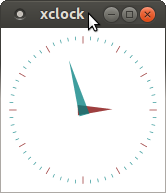
You can check the operation by installing xterm or xclock
– if not installed earlier, install the xdpyinfo package. It is needed for displaying windows on the client machine.
# yum install -y xdpyinfo
# yum install -y xclock
$ export DISPLAY=192.168.1.5:0.0
$ xclock
– you can even just run the command:
$ xclock -display 192.168.1.5:0